Getting Started
This guide explains how to access the SmartGarant API, choose the right environment, and understand request and response structures before starting your integration.
1. SmartGarant Environments
SmartGarant provides two environments:
-
Sandbox Development and integration must be done on Sandbox. Base endpoint: https://sandbox.api.smart-garant.fr/
-
Production Production is reserved strictly for live usage. API keys are enabled only after SmartGarant validation of your account and integration journey. Base endpoint: https://api.smart-garant.com/
2. Get Your API Key
Using the API requires credentials (user/password).
Professional portal pages:
- Sandbox: https://sandbox.app.smart-garant.fr/pro/account
- Production: https://app.smart-garant.fr/pro/account
If the My API Keys menu is not visible, contact your account manager to enable this feature.
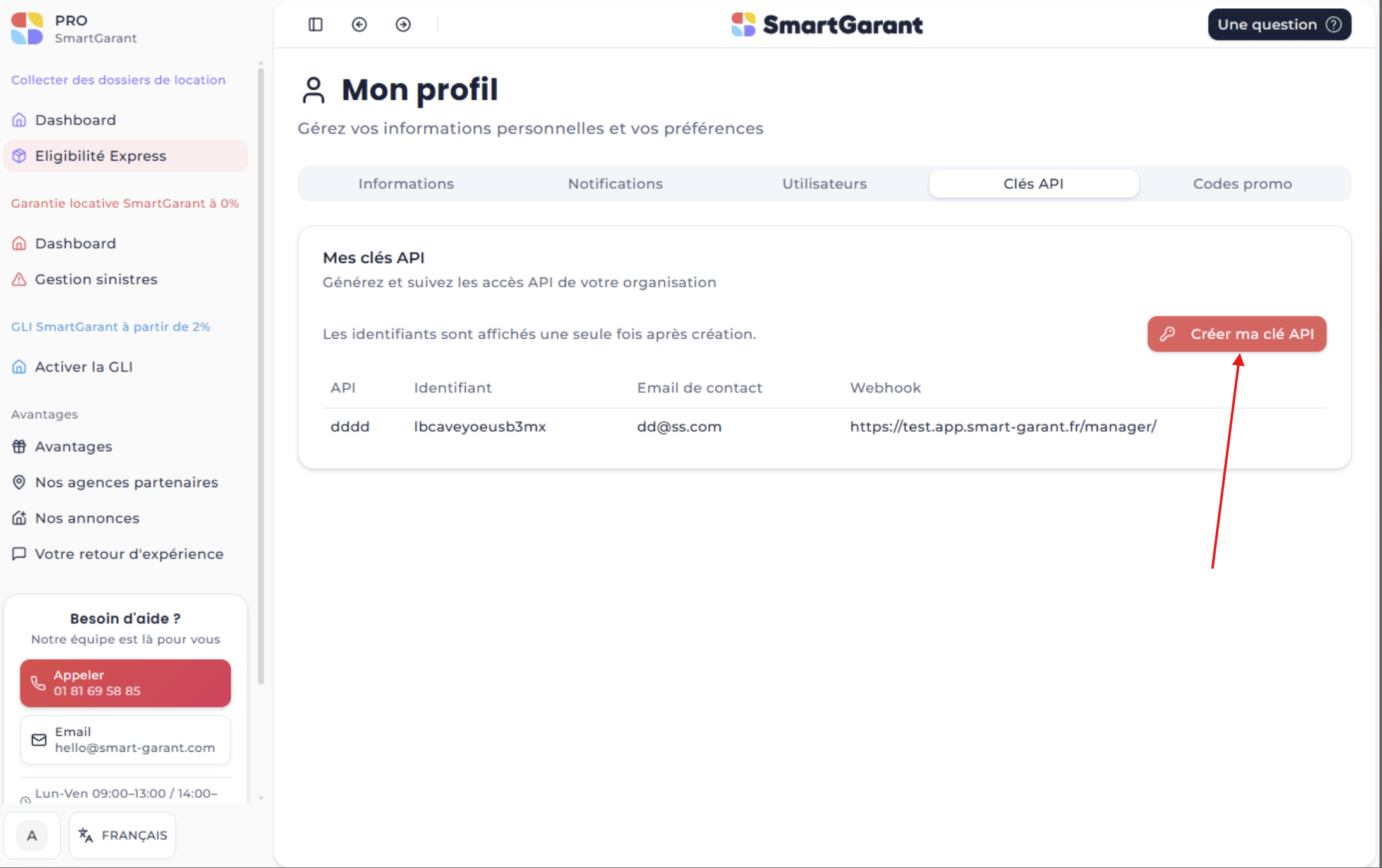
Webhook Registration Rules
- One webhook per API key.
- The webhook URL cannot be edited after key creation.
- To update it, please contact support through the Contact page.
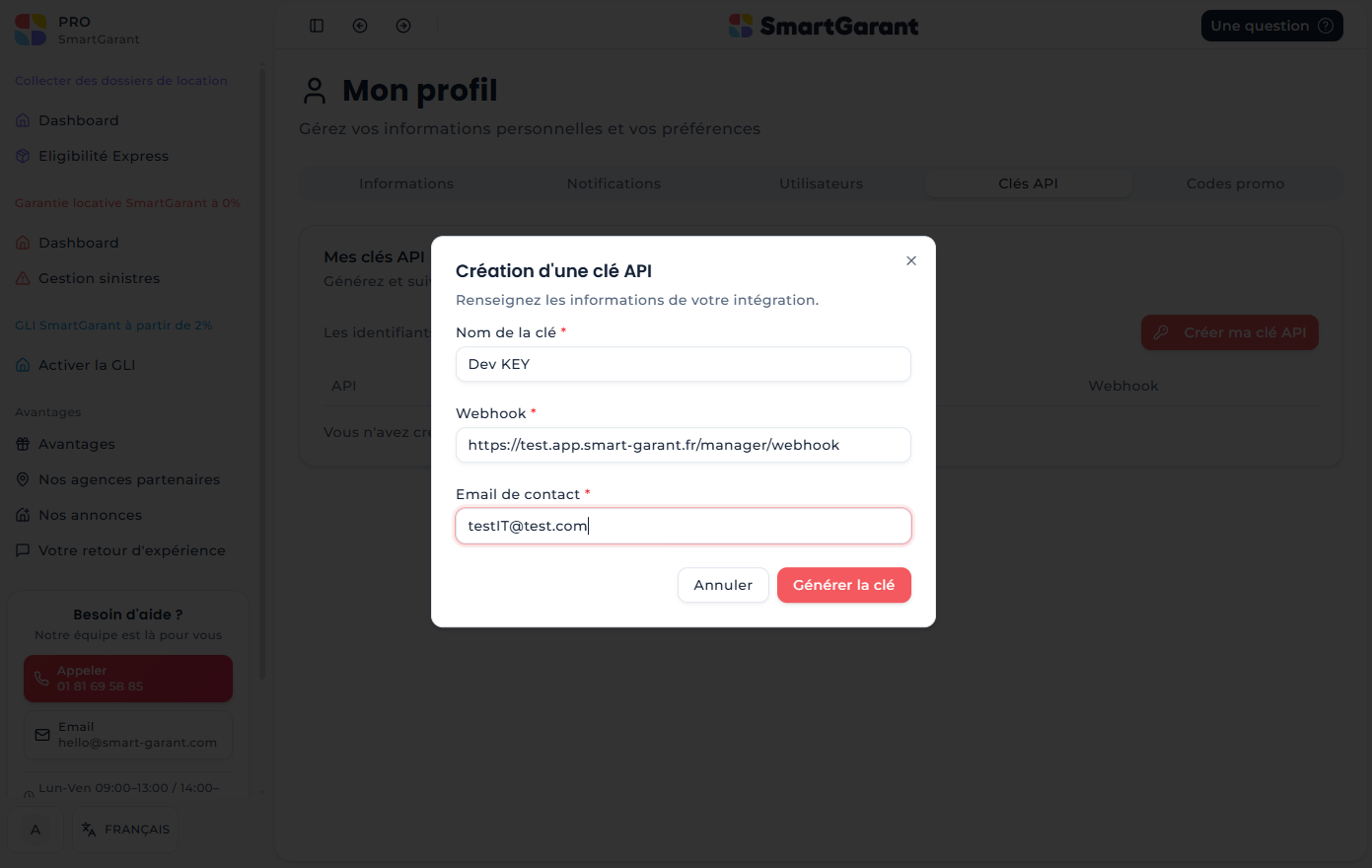
Retrieve User and Password
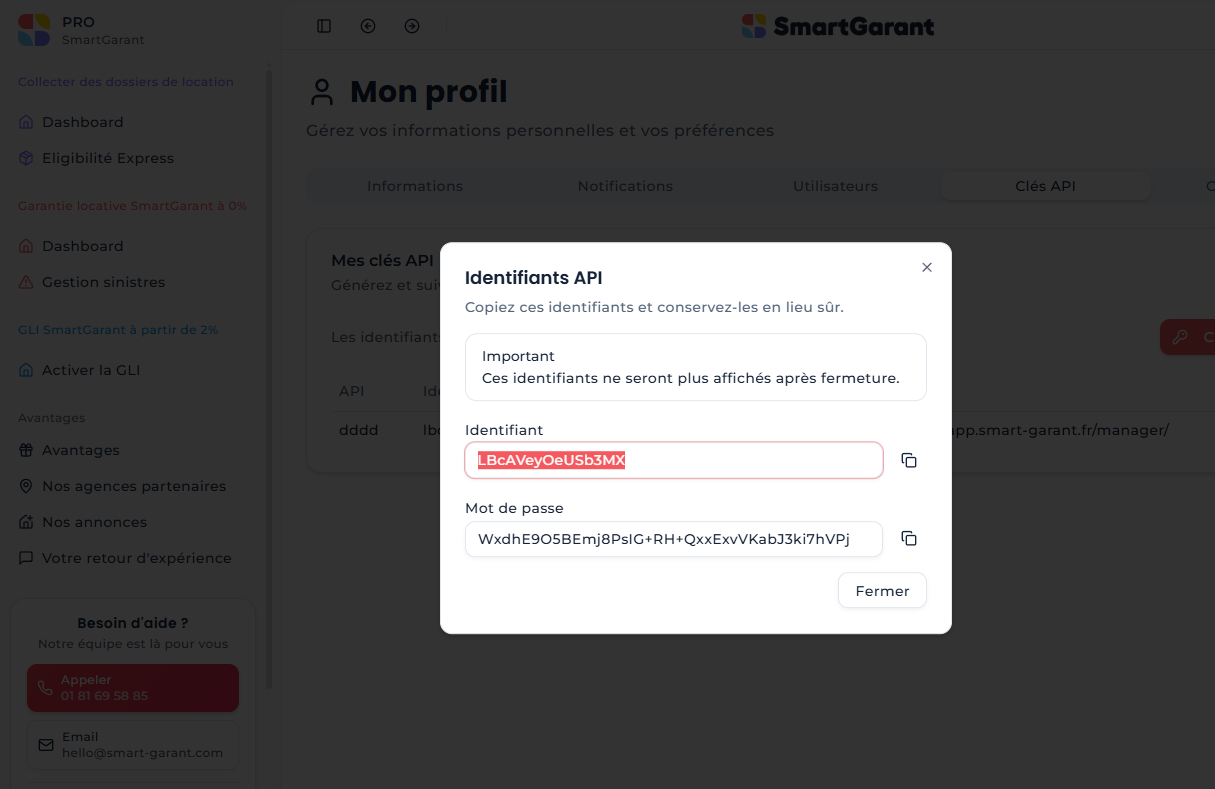
When creating a key, you can retrieve the API identifier and password.
The password is displayed only once at creation time. Store it immediately in a secure vault.
3. SmartGarant Request Structure
Most SmartGarant API responses follow a standard envelope format.
Error Model
Use this format to parse and log API errors consistently:
{
  "requestId": "8f8b569b-56f9-4839-a1e1-e76a4bb8552d",
  "error": {
    "errorCode": "E0085",
    "message": "Email not valid"
  },
  "resultStats": 2185
}
Where:
requestId: unique identifier for the request, useful for support and tracingerror.errorCode: SmartGarant error codeerror.message: human-readable error descriptionresultStats: request processing time in milliseconds
Success Model
Standard response payload format:
{
  "requestId": "ddda8238-6afc-449c-aad3-8a76b8c028f9",
  "payload": {},
  "resultStats": 125
}
Where:
requestId: unique identifier for the querypayload: business response objectresultStats: request processing time in milliseconds
This response model does not apply to authentication endpoints.